The module is directly integrated into the LATRAS VSR console.
This means that no additional application needs to be installed.
In order to define Custom drills:| [](https://docs.helioninteractive.com/uploads/images/gallery/2025-11/cd-button.webp) | Click on the **Custom Drills** button. |
**Create New Drill** - builds a new drill from scratch.
Start by filling in the desired **Name** of the drill and **Description** of the Drill. Both lines need to be filled out in order to proceed.**Select Shooting mode**: available options are
Free Shooting - no restrictions, no preset time limits All targets down - all targets must be eliminated 10sec High Score - drill lasts 10 seconds, aim for maximum score within the time limit Fast 20 Point - drills ends when 20 points are reached 10 for 10sec - 10 shots in 10 seconds drill Shooting mode can be changed during the drill without reaching back to the Drill Edit, it is accessible from the main page for LATRAS Hub, right sided directory.**Targets**
**Custom Targets** - select either predefined image and define your own drill conditions or load any 16:9 image and converet it into a target scene. **Precision Targets** - shooting at a defined distance. The size of the target changes depending on the distance from the shooter. # Custom Targets ##### **How to create a custom target** Select Background Image - predefined image from C:\\Program Files\\Helion Interactive\\LATRAS\\Latras-HUB\\Assets\\Targets (or other location that has been selected while installing LATRAS Hub) - any custom 16:9 image from any location on your computerOnly the image size of 16:9 (width:height) ratio is supported.
[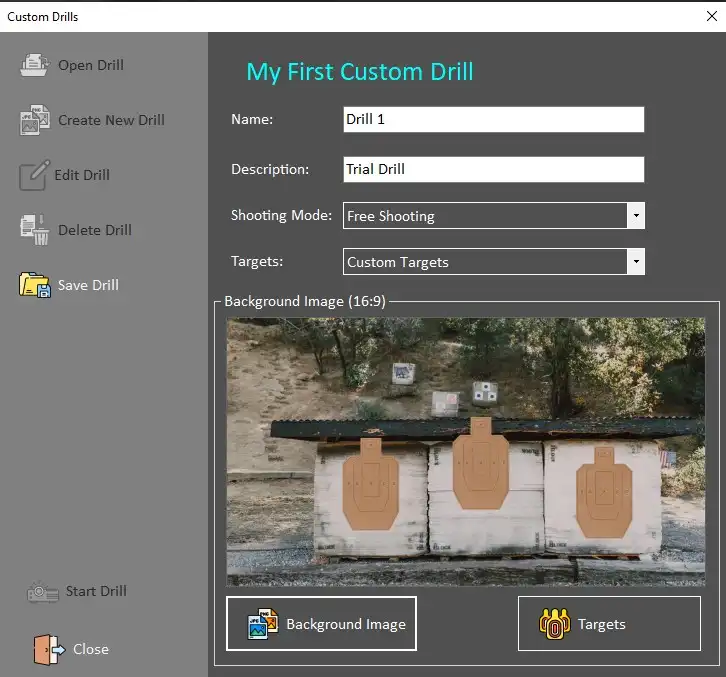](https://docs.helioninteractive.com/uploads/images/gallery/2025-11/cd-backgrphoto.webp) The selected image appears in the dialog window. Follow with selecting target areas by clicking the **Targets** button. [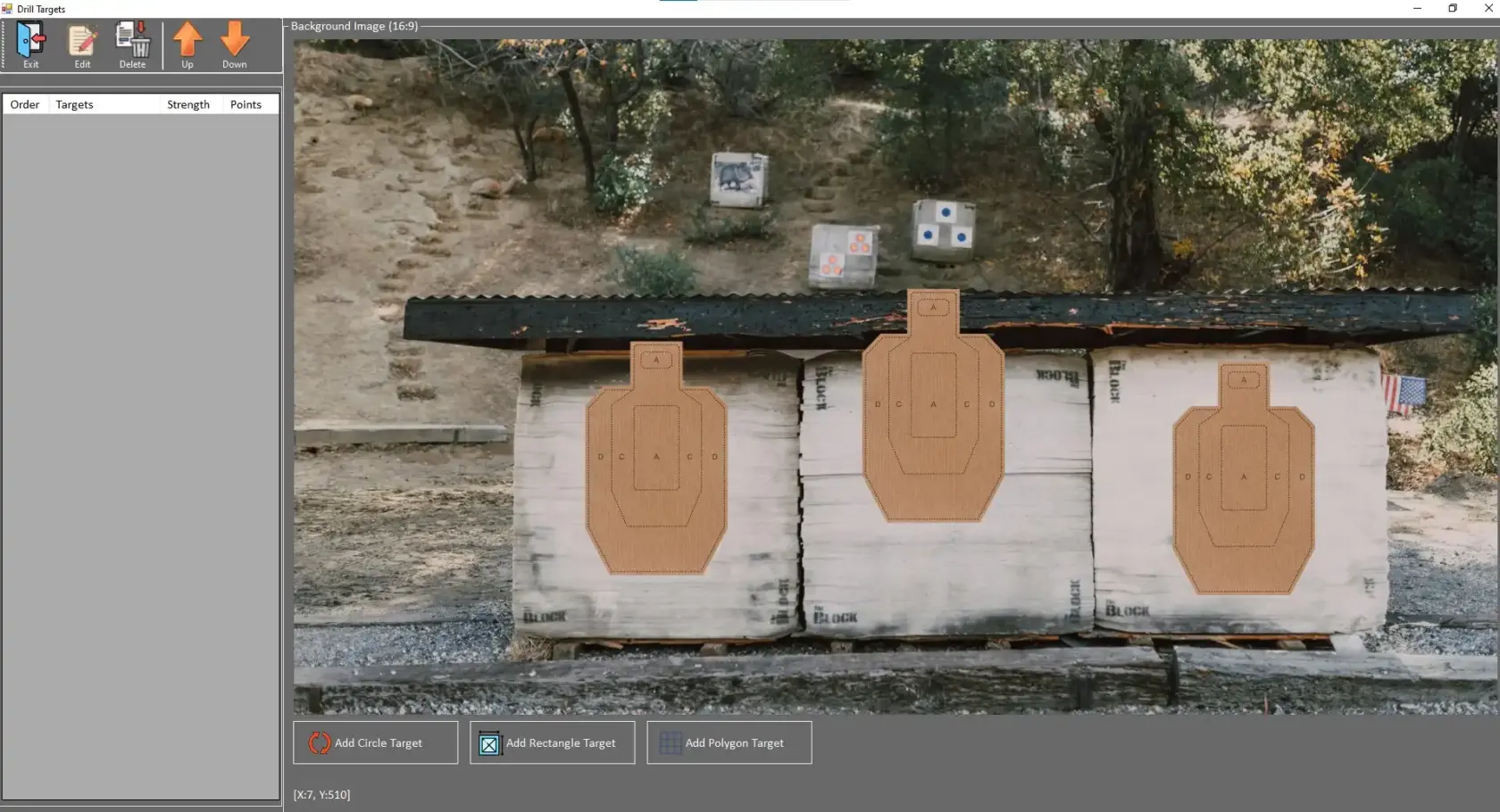](https://docs.helioninteractive.com/uploads/images/gallery/2025-11/cd-targetselection.webp) Create active Target areas using available tools: **Add Circle Target** - select center of the circlular target are and then pull as far as desired with the mouse button pressed. Release the mouse button when the circle is the right size. To each created target area is an order number and Target C type assigned. Each target can be further modified (strength, value, sounds, etc.). **Add Rectangular Target** - select one of the corners of the rectangular target area and drag the cursor across. Release the mouse button when the area is the right size. To each created target area is an order number and Target R type assigned. Each target can be further modified (strength, value, sounds, etc.). **Add Polygon Target** - each mouse click creates one point of the polygonal target area. To close the area and to finalize the polygonal area use the right click. To each created target area is an order number and Target P type assigned. Each target can be further modified (strength, value, sounds, etc.). When two target areas overlay, only one area will be recognized. For example, polygonal area C includes 2 areas A, when area A is hit, only the value of area A will be recognized and scored. [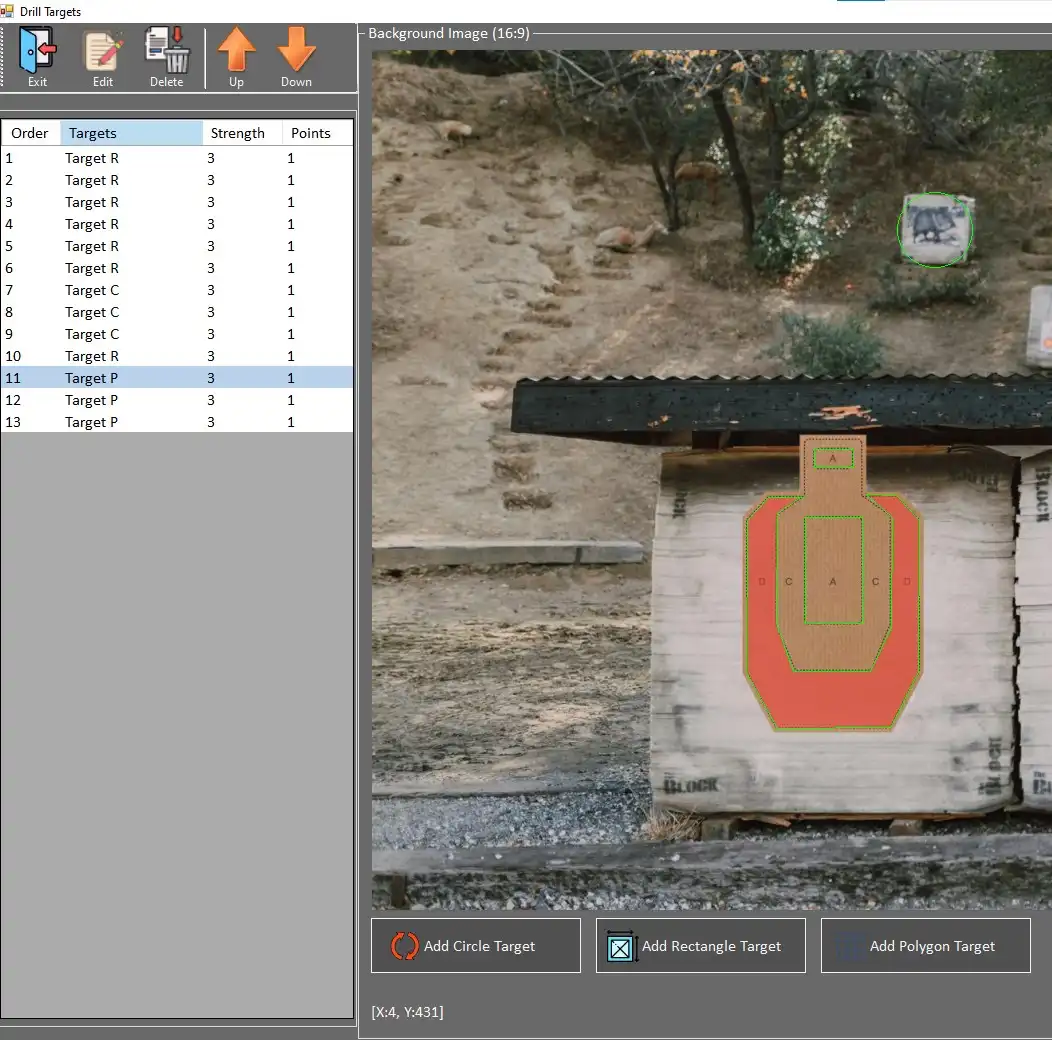](https://docs.helioninteractive.com/uploads/images/gallery/2025-11/cd-targets.webp) For further editing of the targets - select the target in the list - it gets highlighted. By clicking **Edit**, following options can be selected:| [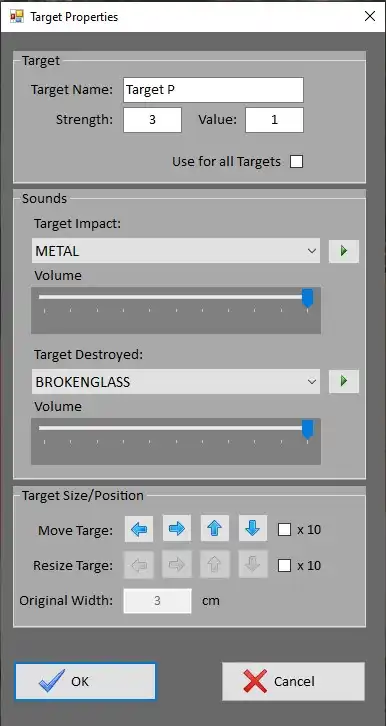](https://docs.helioninteractive.com/uploads/images/gallery/2025-11/cd-customselection.webp) | Custom name can be typed in. Strength - number of hits before elimination of the target Value - number of points awarded for selected target area Use for all targets - sets this Strength and Value for all targets defined in this drill |
| Target Impact - sound of the impact when the area is hit Volume - position the slider as desired, max is on the right | |
| Target Destroyed - sound of the last impact when the target is destroyed (Strength= 3 --> 3rd hit) Volume - position the slider as desired, max is on the right | |
| Target Size/Position Move Target - for more precise positioning - arrows move selected target in either direction in small increments (or 10x bigger when the checkbox is selected) Resize Target - scales target in small increments, available for rectangular and circular areas only Original width applies only to Presicion Targets' mode. |
**Proceed with Save Drill.**
**Start the drill by clicking Start Drill.**
The drill is prompted to the main screen and the projector. Further control over the drill is located in the right hand side of the main page of LATRAS Hub. # Precision Targets ##### **How to create a precision target** Follow **Customs Scenarios Setup** and crate a New drill. Select Background Image - predefined image from C:\\Program Files\\Helion Interactive\\LATRAS\\Latras-HUB\\Assets\\Targets (or other location that has been selected while installing LATRAS Hub) - any custom 16:9 image frm any location on your computerOnly the image size of 16:9 (width:height) ratio is supported.
When background image is selected, contiue with the **Targets** button. [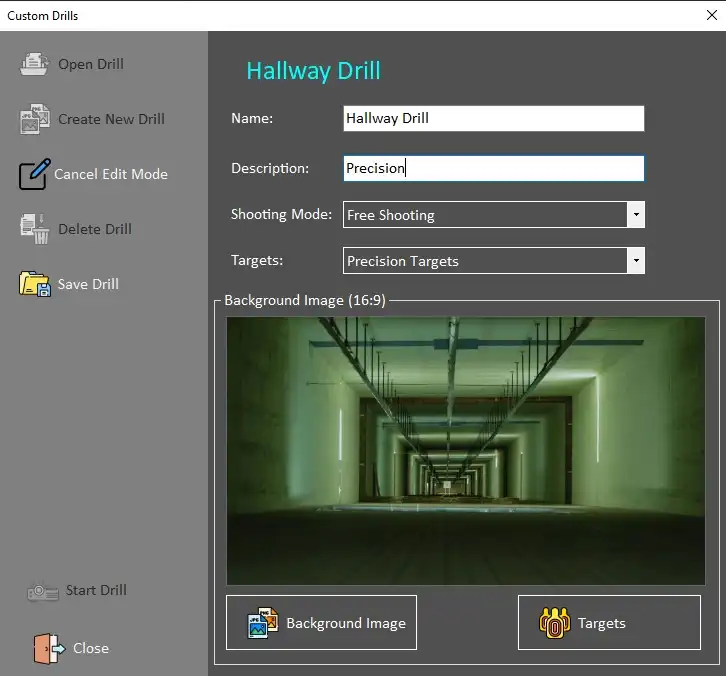](https://docs.helioninteractive.com/uploads/images/gallery/2025-11/pt-dialog.webp) In the newly opened background enlargement, select **Add Image Target** button and select desired target from - C:\\Program Files\\Helion Interactive\\LATRAS\\Latras-HUB\\Assets\\Targets (or other location that has been selected while installing LATRAS Hub) - any custom target image [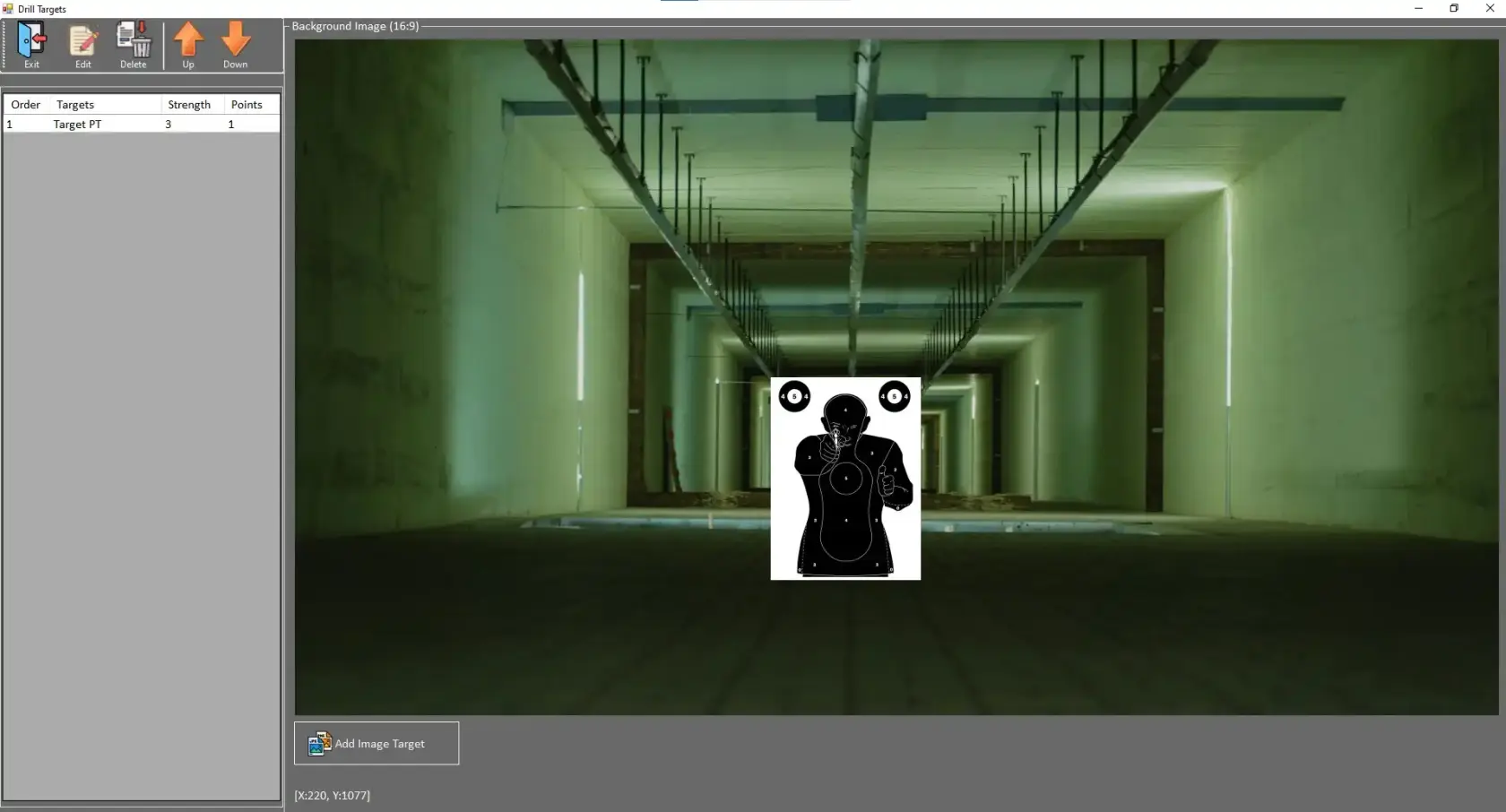](https://docs.helioninteractive.com/uploads/images/gallery/2025-11/pt-targetin.webp) The selected target is placed into the background image by simply clicking to anywhere in the background and then sliding the image with a mouse to a desired location. To Edit the properties of the target, click on the Target's description line in the left banner and select the **Edit** button.| [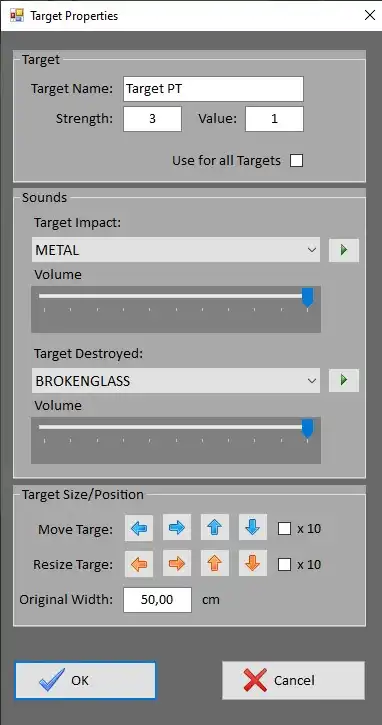](https://docs.helioninteractive.com/uploads/images/gallery/2025-11/pt-targetpropties.webp) | Custom name can be typed in. Strength - number of hits before elimination of the target Value - number of points awarded for selected target area Use for all targets - sets this Strength and Value for all targets defined in this drill Target Impact - sound of the impact when the area is hit Volume - position the slider as desired, max is on the right Target Destroyed - sound of the last impact when the target is destroyed (Strength= 3 --> 3rd hit) Volume - position the slider as desired, max is on the right Target Size/Position Move Target - for more precise positioning - arrows move selected target in either direction in small increments (or 10x bigger when the checkbox is selected) Resize Target - scales target in small increments, available for rectangular and circular areas only Original width - fill in the width of the Target in the real world. The system will work with this dimension and scale it according to the distance in the scene. Hit OK when finished. |
**Proceed with Save Drill.**
**Start the drill by clicking Start Drill.**
The drill can also be started from the main screen. The control over the drill is located in the right hand side toolbar on the main page of LATRAS Hub. The distance of the target can be adjusted by scrolling the mouse. The information about the current distance is displayed in the left hand corner of the drill.