
First Start
After installation, make sure your computer runs through restart prior to first start.
First Start
Double click on the Latras.exe file.
Once loaded, message about missing licence appears. Click Close and then go to folder My account which is located in the upper left corner of the application.
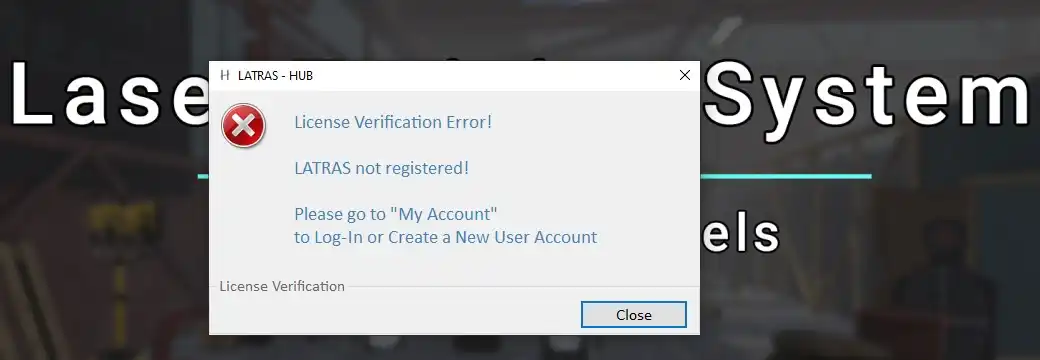
Click close and continue to My account (located in the upper left corner of the screen).
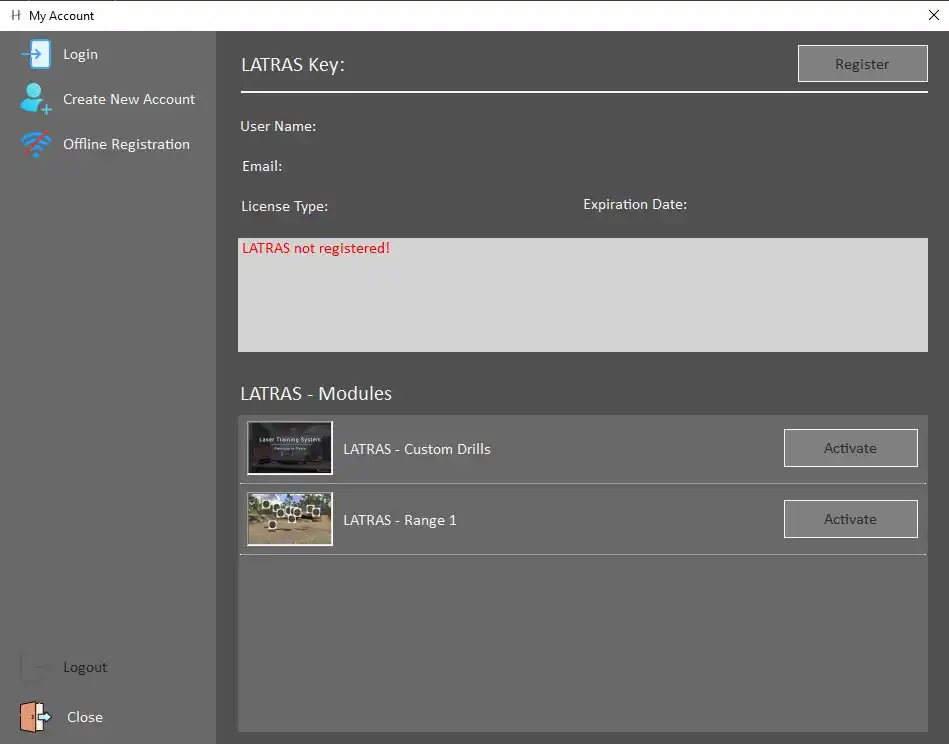
Available options are:
Login - to be used for existing Helion Interactive account.
Create New Account - in case no account has been set up yet. Required information is UserName, email, and a password.
After filling in the information, proceed with Create Account button. An automated verification email with a unique code will be sent to your email address. Enter the code and click Verify.
In case you haven't received the email within a few minutes, try Send New Code button. If the code doesn't come, or troubles with the verification persist, email to info@helioninteractive for help.
After sucessfull verification, leave the My account window to see the main page Latras Hub. It is now possible to download the Range 1 plug-in.
Click the Plug-in button.

In the newly opened dialog, click Install.

Then select Install Module. It will automatically download and install the latest version of Range 1.
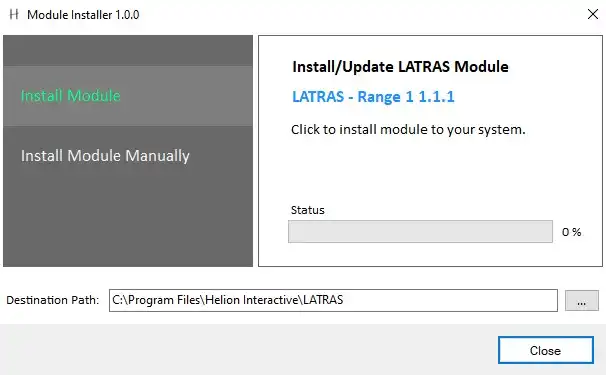
Install Module Manually is suited for locating an existing installation or troubleshooting.
After its installation, Range 1 is available in Demo mode. For full use, the licence must be activated in My Account folder.

For full activation of the Range 1 module, go to the main page and select My Account.
Licence Activation
Select Acivate, enter your Product Key and Verify it.
If sucessfully verified, Range 1 can be switched from Demo to full active mode by the Activate button.
Last step is to restart LATRAS.
| Go to Next page |
No comments to display
No comments to display