
Installation
Below you can find details on how to install LATRAS Hub on your computer. You can also find the installation guide on Youtube under this link.
Note that installation process requires internet connection.
Requirements
To be added
Download
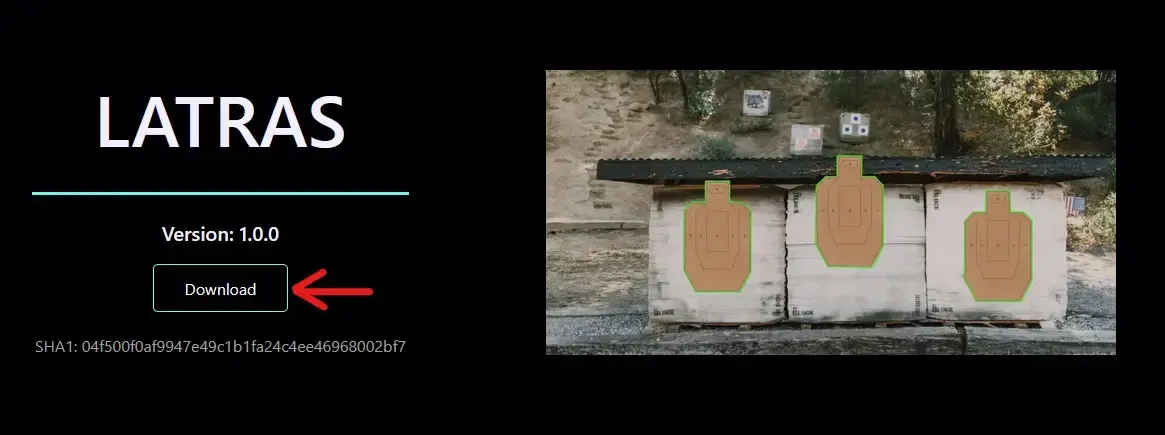
You can download LATRAS by going to www.helioninteractive.com, navigating to the Download page, or just follow this link. There you can find the latest release of the simulator. Click the download button, and the download should start automatically. The download can take up to a few minutes to finish, depending on your internet connection.
If the download freezes or fails multiple times, try using a different browser.
 Individual components
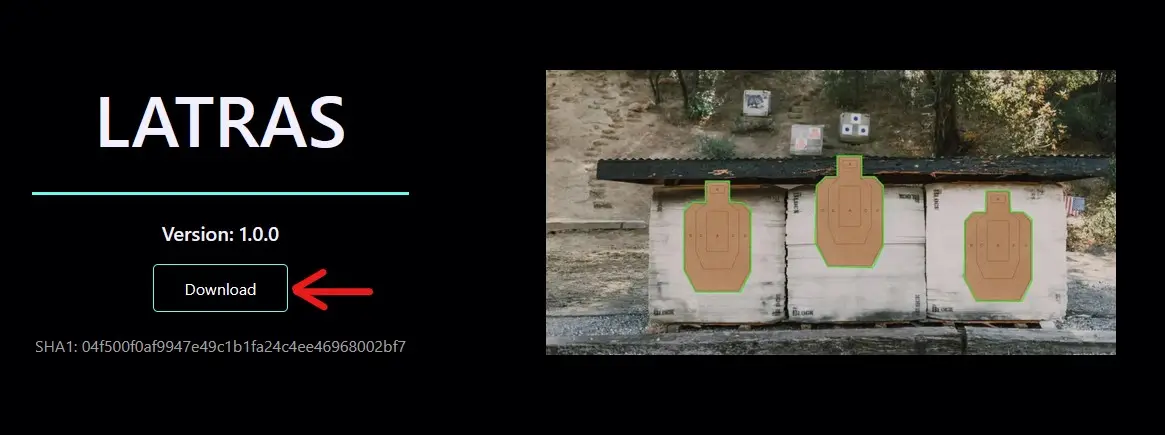
By scrolling on the download page, you will find Individual component section. Here are individual parts of the software. This should be used only for troubleshooting or special installations.
Installation
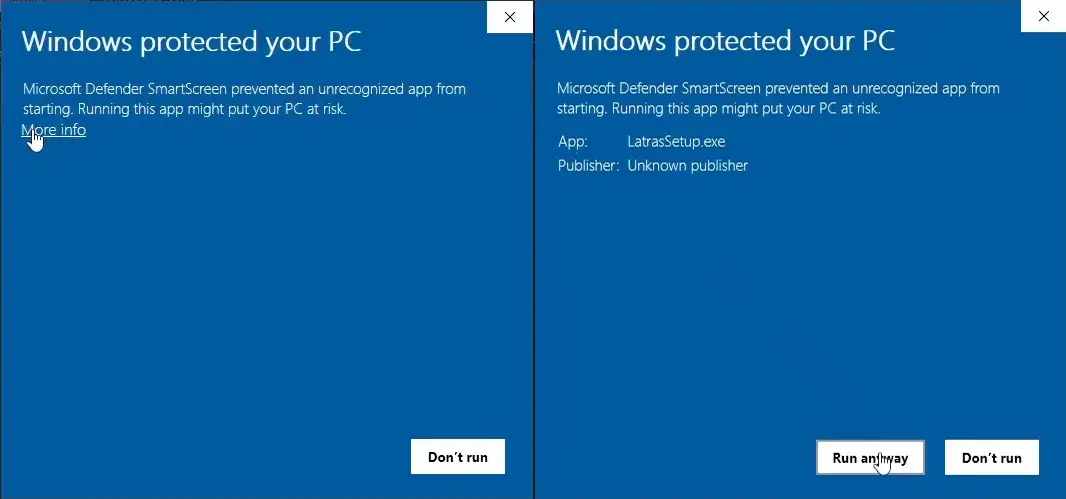
When the download is complete, open file explorer, navigate to Downloads folder where you will find LatrasSetup_v{version}.zip. Move the .zip file to any folder in your computer (e.g. Temp). Extract the zip file. Inside you will find LatrasSetup.exe. Open the .exe file. Windows will display warning about unknown publisher. You can ignore it and proceed with the installation.
Now the installer will open. Start by accepting the license agreement. You will need to choose the installation path. Default location is in the Program Files. This is also the recommended option, but you can choose any folder you like. After this step, there is an option to Create Desktop Shortcut.
If you want to create desktop shortcut, you will need to run the installation on an windows account with administrative privileges. Otherwise the desktop shortcut needs to be created manually.
After this step the actual installation will begin. Wait for message saying "Installation completed successfully". In the end restart the computer before starting LATRAS for the first time.
| Go to Next page |
No comments to display
No comments to display