Connecting to LATRAS Hub
Establishing Connection
Connect the camera to your computer / notebook, ideally using the Basler connector cable. Non branded cables will work too, but with speed limitations.
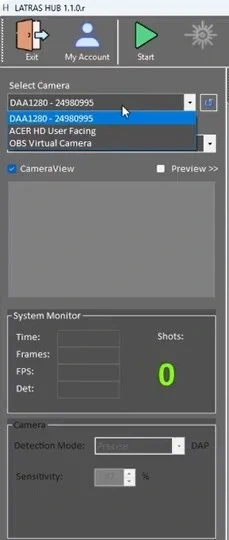
Start LATRAS Hub. In the upper left corner, check the Select camera scroll and look for camera starting DAA or D2A. Select this camera.
If the camera doesn't apear within the selection, click the small refresh button next to the scroll. If it still doesn't appear, check both cable connections - camera/cable/computer, or try restarting the LATRAS Hub.
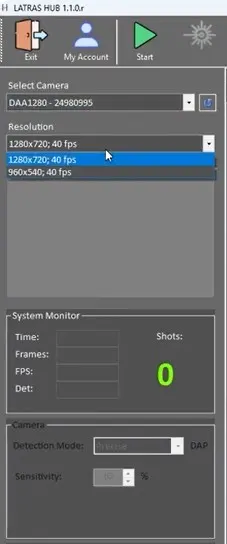
Follow with resolution selection. te best is to select camer's native resolution 1280x720 in order to get the highest number of pixels..
| Select Camera | Select Resolution |
|
|
|
|
|
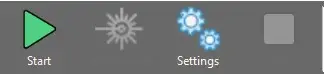
Once the camera and resolution are selected, click the green Start button and the live camera fed will appear. To stop it, hit the square red Stop button (it turns red whenever the camera is running).
|
|
|
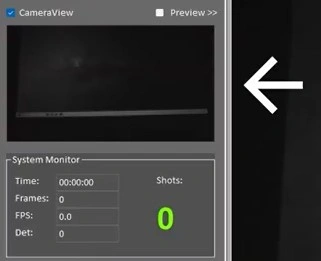
Camera feed will appear in the CameraView window just below the Resolution selection. |
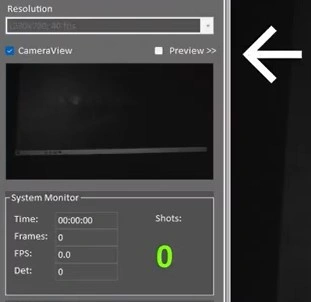 |
Should you want to see the feed in the main window, check the Preview box prior to hitting the Start button.
When the camera is on, the preview will not appear instantly after checking the box. Stop the camera and Start it again. Now, the feed will appear in the main window. |
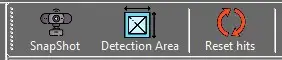 |
SnapShot button will make an instant photo of the camera feed and captures the current camera's view. To return to live feed, hit Stop and then Start button. |
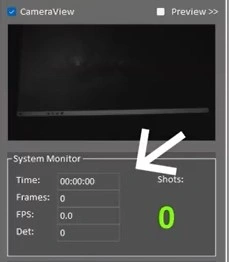 |
System Monitor updates every 10 seconds and keeps an eye on the important system functions and is especially useful for troubleshooting. Time FPS: Frames per second - indicates how many frames is the camera capturing per second. Det.: Displays the average time it takes the camera to caputure the laser detection.
If either of these parameters turn red, there may be a performance issue preventing the simulator in working correctly.
See next setting for hint. |
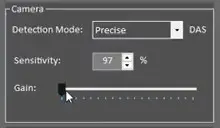 |
Additional camera settings: Detection mode - Precise, Very Good, Good - Allows to lower the requirements on your computer system in one simple step. If everythig runs smoothly, leave "Precise" detection mode. Should you be getting red numbers in the System monitor while running, try resetting to to Very Good, if problems persist, try Good.
The Sensitivity factor at 97% is optimal for the range function. Do not change it, unless troubleshooting.
Gain is an important value - it controls brightness of the image. Drag it to the right for a brighter image or to the left for dimmer.
|