
Calibration
The calibration procedure is recommended before introducing a new laser weapon, assigning a new shooter, or changing the shooting position. It is necesarynecessary to ensure proper alignment of the laser beam with the gun’s mechanical and optical axes. Range 1 allows up to 10 different calibration profiles to be saved and used throughout the practisepractice for either of the drills.
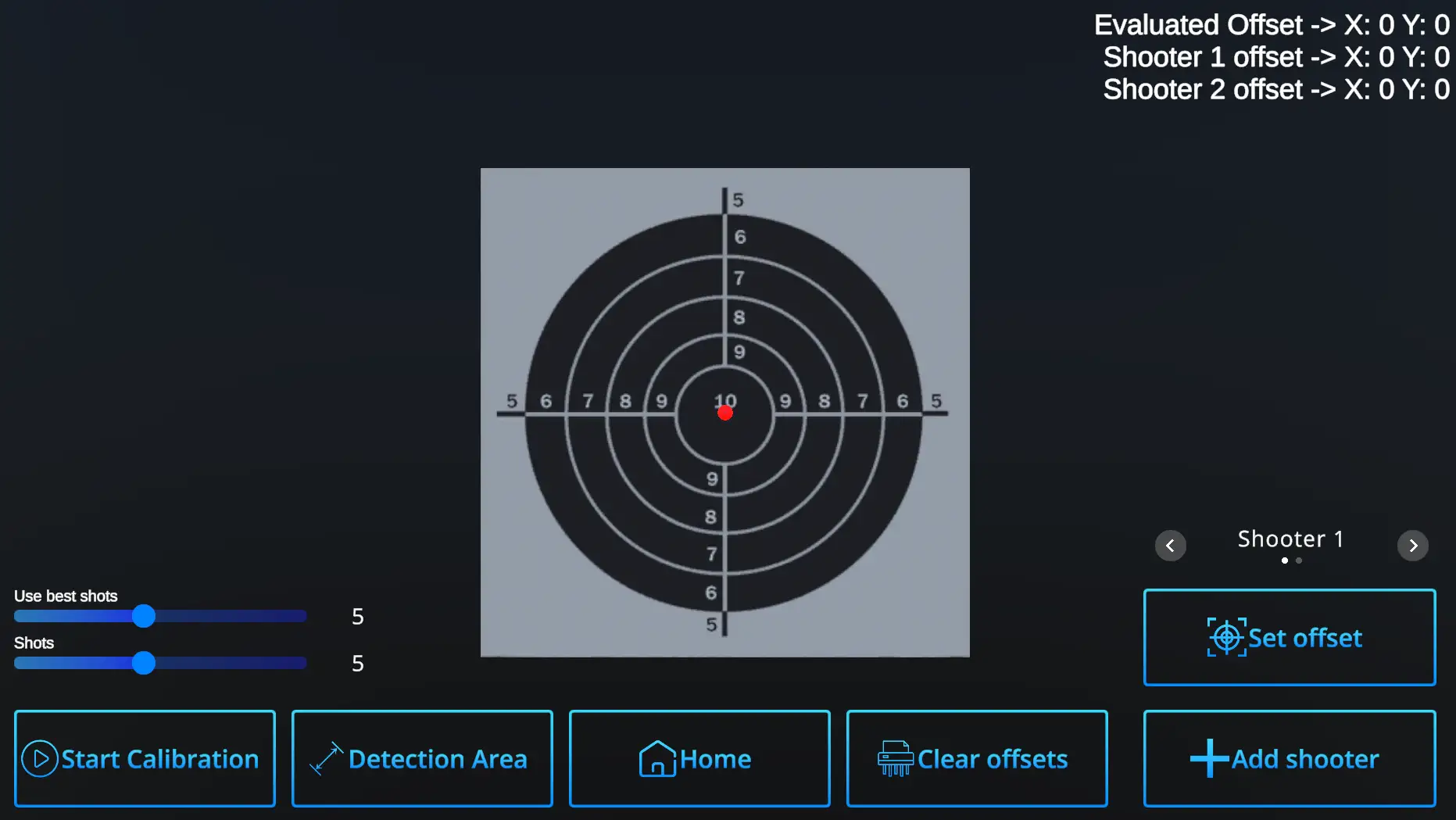
Start the Calibration by selecting values of Use best shot and Shots, or use default values 5 + 5.
Use best shots : Sets number of shots used to calculate the offset from true 10. Default value is 5 best shots, but can be up to 10 shots.
Shots : Sets number of recorded shots. Maximum is 10, default number is 5.
Example : Use best shots value - 5, Shots value - 10
Even if selected number of Shots is 10, the Use best shots setting wilwill ensure that only 5 best are used for calculation of the offset.
If there are more shooters, use +Add shooter and see how their info appears in the upper right corner.
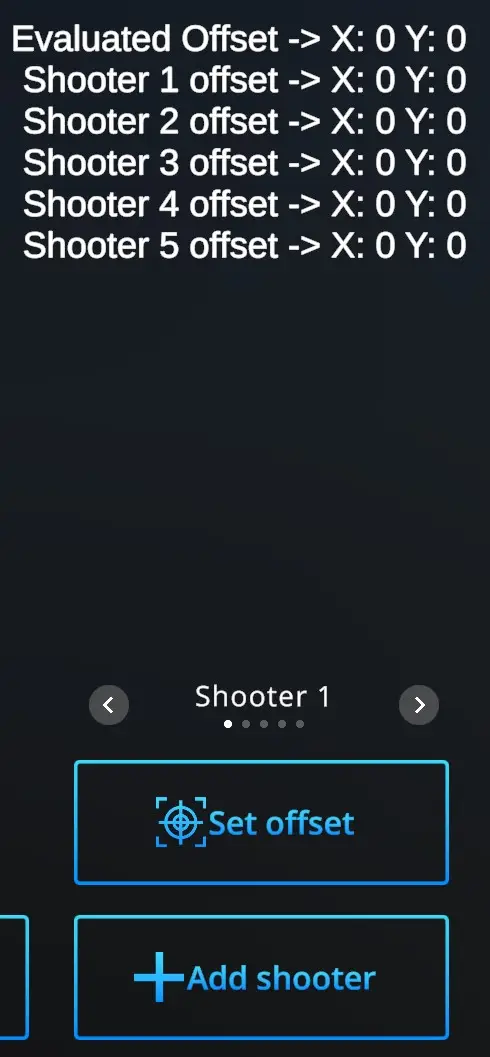
Up to 10 Shooters can have their specific calibration data saved. The slider above Set offset selects active Shooter (Shooter 1, Shooter 2 ... Shooter 10) for whom is the calibration performed at the moment.
Every time you start calibration, ensure that it is performed for the correct shooter.
Start calibration : Shoot at the target aiming at the center. The offset will be showshown in the upper right corner on the first line as Evaluated offset.
- you are not satisfied and want to try again - hit Start calibration - and
perofrmperform the shots again - you are satisfied with the shot location on the target and the Evaluated offset- hit Set offset
The offset will be shown next to the Player 1 offset expressed by the shift coordinate.coordinates.
Repeat for each of the Players.
Note that each laser gun, each trainee, and each location should be calibrated separately.
Clear offsets : Offsets can be recalibratedcalibrated for each Player separately. On a slide above the Set offset button, Choose Player whom to change the offset, than hit Clear offset button and X=0, Y=0 appears next the the relevant Player. Then go throughtthrough the Calibration process to get the new offsets.
Detection area : Sets detection area of the camera. For more information, refer to XXX
Home - returns to the Home page with drill selection.