
Floating Targets
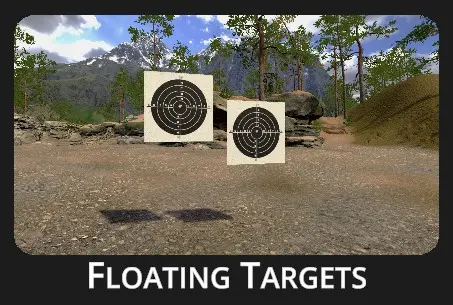
Targets appear at a fixed distance, hanging or floating within the scene. The goal is to eliminate all targets as quickly as possible without missing any shots. Points are awarded based on accuracy. Depending on the selected mode, targets may appear all at once or one by one.
Configuration dialog appears when the drill is selected:
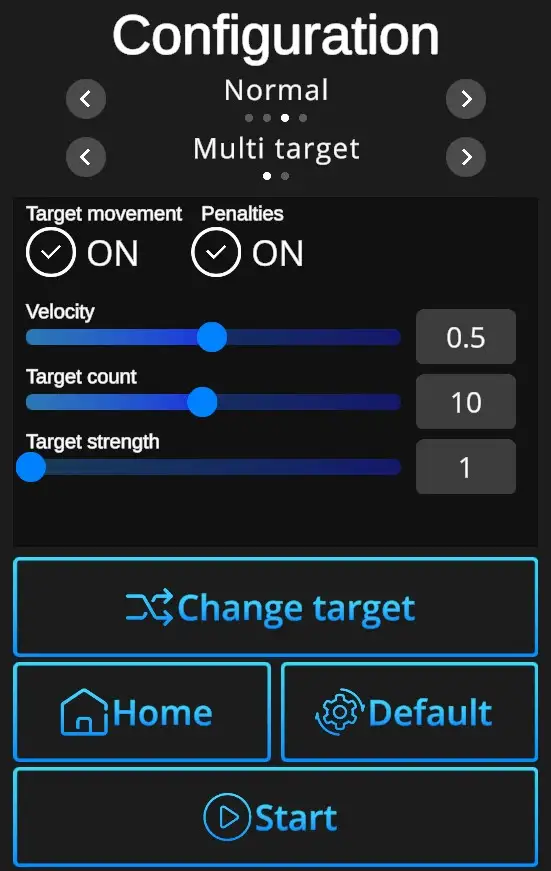
Difficulties to be selected from:
Custom, Easy, Normal, Expert - refer to Difficulties
Target options:
Single Target -: Only one target at a time appears.
Multi Target -: Multiple targets appear and can be shot in any order.
Target movement ON/OFF -: Selection of scene with either fixed (no movement) or floating targets (random movement, floating, overlapping targets).
Penalties ON/OFF -: Penalties ON will add 1 second to the drill time for every missed shot. Penalties OFF ignores the misses and records only elapsed time.
Velocity -: Can be set from value 0 (slowest) to 1 (fastest). Can be adjusted in the Custom difficulty level, other levels have the velocity preset. (Easy 0,2, Normal 0,5, Expert 1,0).
Target count -: Number of targets to be shot induring the drill (1-20). Can be adjusted in the Custom difficulty level, other levels are preset. (Easy 7 shots, Normal 10 shots, Expert 12 shots).
Target strength -: Indicates number of hits necessary to remove each target. Standard setting is 1, custom setting allows up to 5 hits per target.
Change target -: Selects target type.
Default -: In one click resets the scene to default Floating Targets setting - Normal Difficulty + Multi Target + Target Movement ON + Penalties ON + Target Count 10 + Velocity 0,5 + Target Strength 1.
Home -: Directs back to page with drill selection.
Start -: Starts the drill. Note that the drill can also be started with a random shot at the scene.