
Scoreboard
Scoreboard Entries:
Each drill has its own Scoreboard. When a performance that qualifies for registration is recorded, the application displays a dialog box for registering the shooter and their performance:
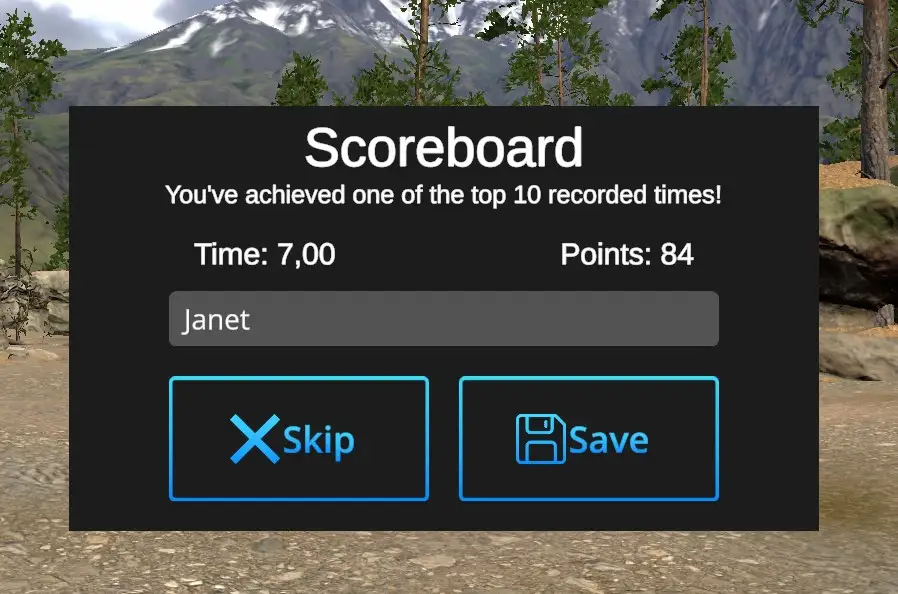
You don't want to save the achieved performance results, hit the button 'Skip' and contiue your practise.
You want to save the achieved performance results - Use computer keyboard to type in your name or nickname, the score is recorded automatically. Hit 'Save'. Actual Scoreboard will be prompted:
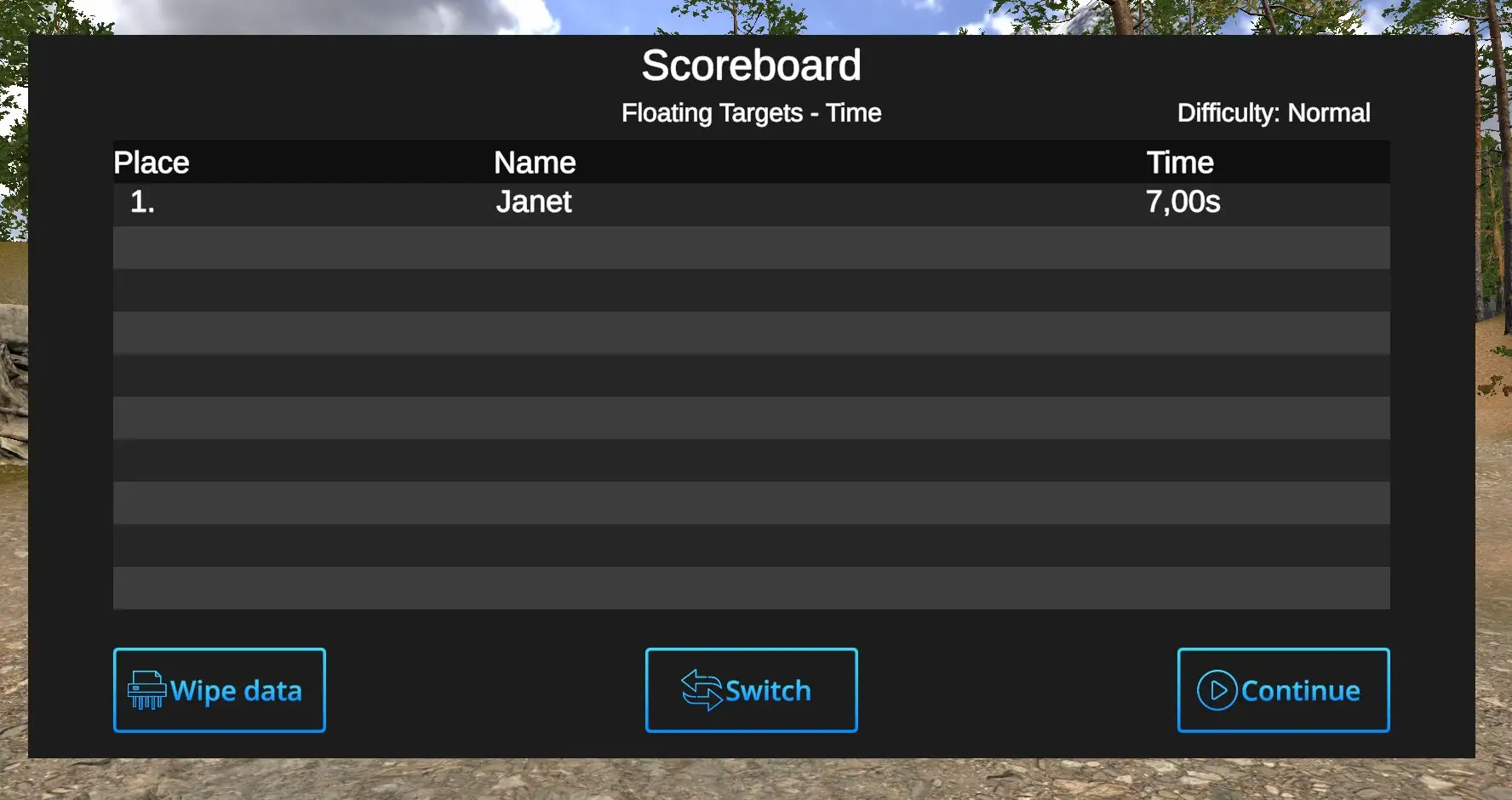
Avaliable choices are:
Wipe data: If selected, following dialog appears:
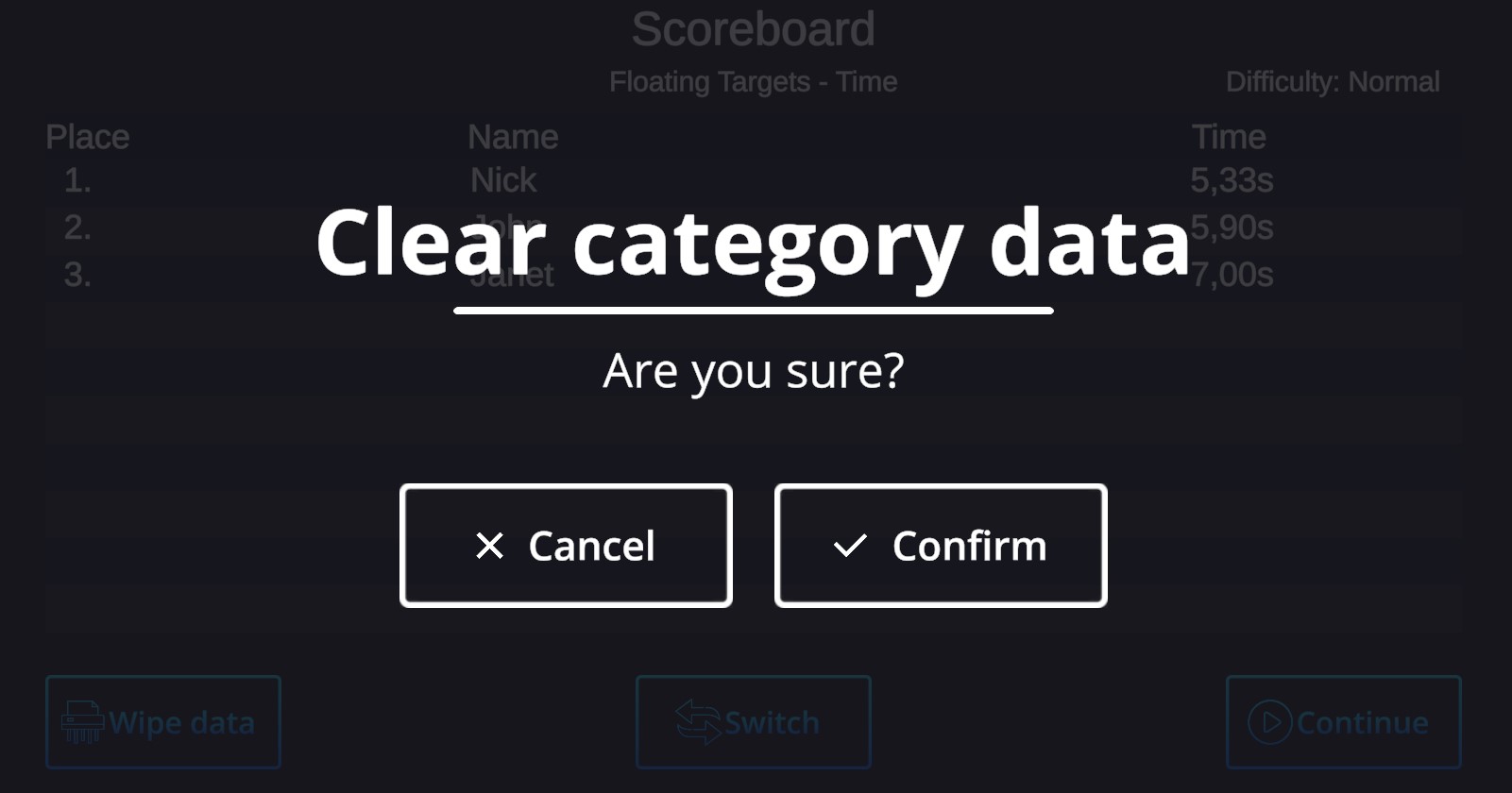
Cancel -
Scoreboard Overview:
The Scoreboard overview is accessible from the Home page - Scoreboard:
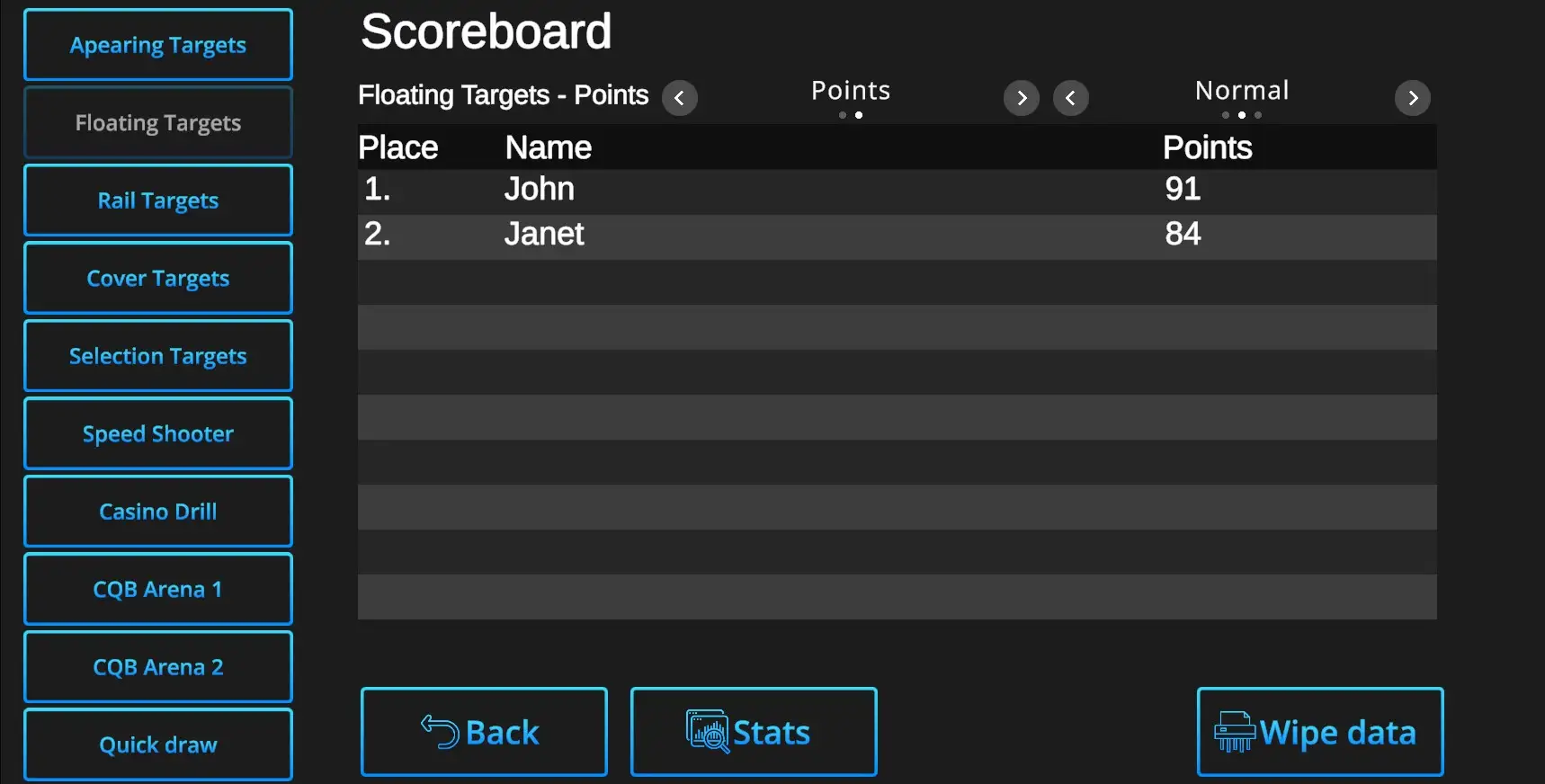
Each drill has its own bookmark - whichever drills' scoreboard can be accessed by clicking (shooting at) the relevant bookmark button.
Switches between results based on Points or Time as well as between various Difficulty modes are available above the list of scorers.
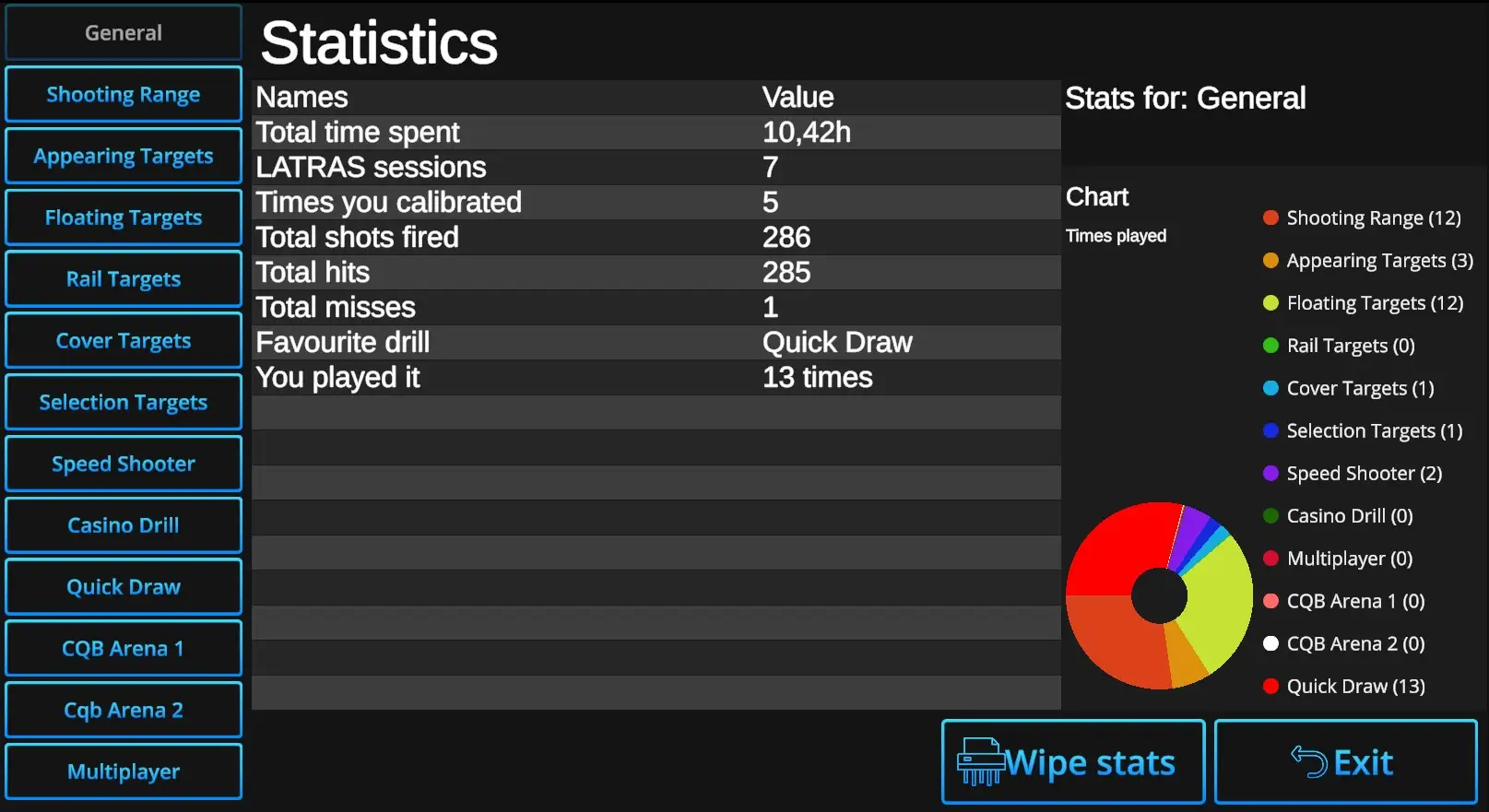
Wipe stats: When selected and confirmed, all Statistics data will be erased.
Exit: Return to Scoreboard dialog.