
Settings
The main Settings dialog is accessible from the Home Page.
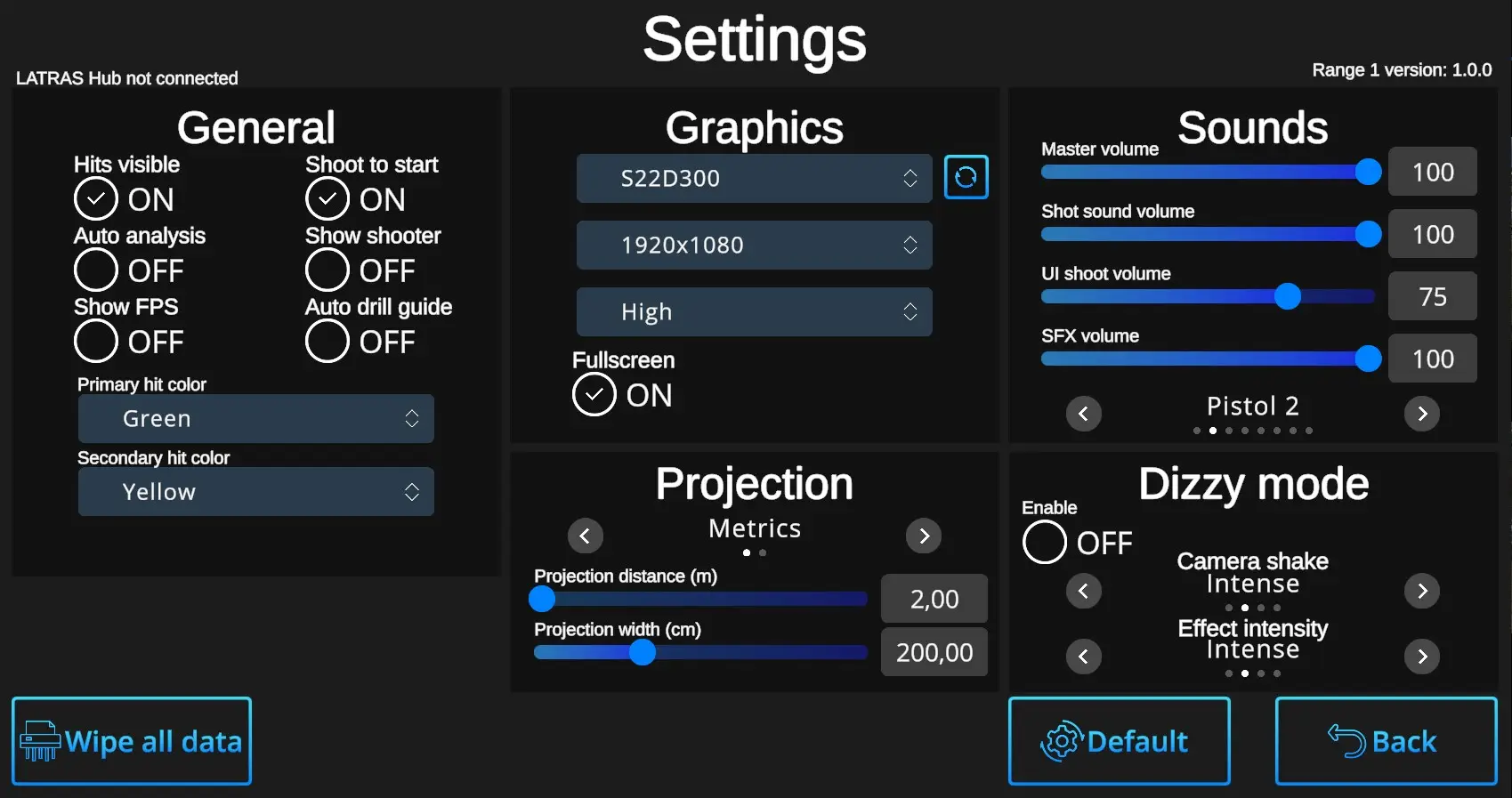
General Settings:
Hits Visible ON/OFF:
ON – Hits are marked with a dot.
OFF – Hits leave no visible mark, but are still recorded by the system and can be reviewed later in the Analysis, where hit locations will be displayed.
Auto analysis ON/OFF:
ON – The system automatically runs the analysis after completing each drill—except for the Shooting Range, where basic shot information is always displayed in the upper right corner, and deeper analyses can be initiated manually using the 'Analysis' button.
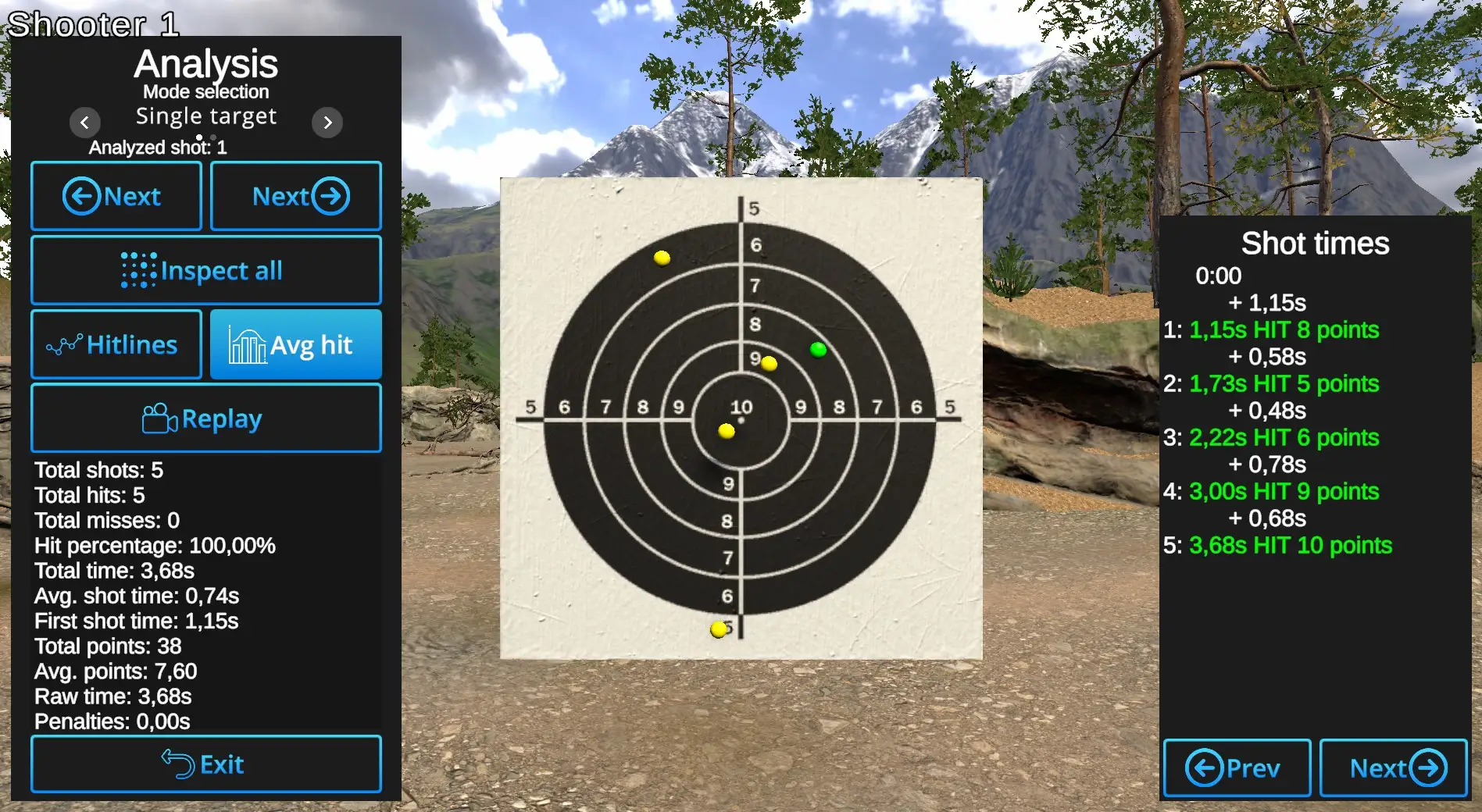
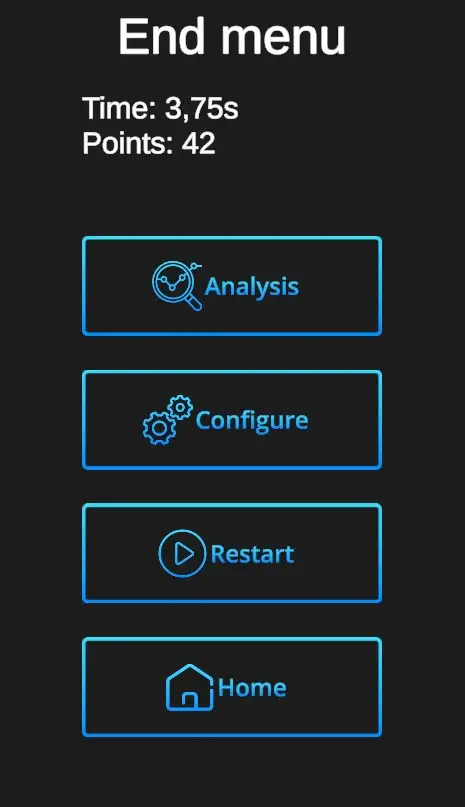
OFF – Only the End menu will be prompted after each drill. The Analyses can be started by prompting the Analysis button.
Show FPS ON/OFF: Prompts ON / OFF the visibility of the current Frames Per Second ratio.
ON - It appears in the upper left corner under the Player information.
OFF - No information.
Shoot to start ON/OFF:
ON - Each drill can be started by firing to any place on the screen. (Recommended setting)
OFF - Each drill can be started only by firing at the Start button.
Show shooter ON/OFF:
ON - Shooter information appears in teh upper left corner, e.g. Shooter 4. This setting is recommended for practise of multiple shooters.
OFF - No shooter information apperas on the screen. This setting is recommended for a single shooter practise.
Auto drill guide ON/OFF:
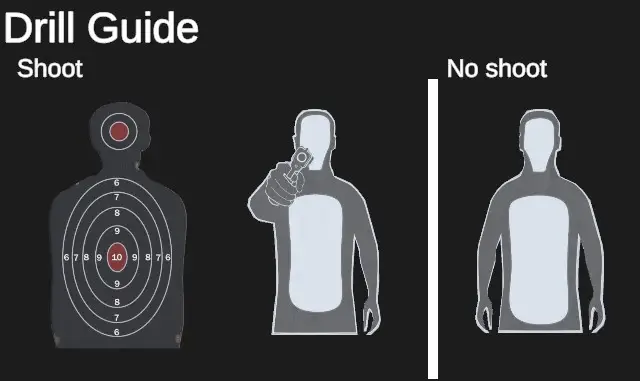 |
Drill guide appears at the beginnig of each CQB drill, but only if the main setting -> Home-Settings-Auto drill guide control is ON.
For experienced players Auto drill guide setting OFF would be satisfactory. |
Hit colors:
Primary hit color: Sets color of the current or last fired shot.
Secondary hit color: Sets the color of all other shots besides the last fired shot.
Graphics:
Fullscreen ON/OFF:
ON - Stretches the screen over the full screen, hides all other browser interface.
OFF - Allows for the upper taskbar to be visible at all times.
Projection:
Slider selection Metrics x Imperial - Choose units in which you enter information about available room size.
Projection distance (m/ft): Enter about how far the shooter stands from the screen.
Projection width (cm/inch): Enter about how wide is the projection screen.
Sound :
Master volume : Available values are 0-100%. 0% mutes all of the sounds.
Shot sound volume : Available values are 0-100%. 0% mutes the shot sounds.
UI shoot volume : Sets the volume of sounds associated with the user interface (UI) in the application. This includes sounds for button presses, menu navigation, notifications, and other interactive elements within the UI. Available values are 0-100%.
SFX volume : Sound Effects volume sets the level or intensity of enhanced sounds used to deepen the experience.
Gun selection slider : Each of the available choices: Pistol 1, Pistol 2, Pistol 3, Pistol 4, Assault Rifle 1, Assault Rifle 2, Shotgun, Marksman Rifle has different sound associated with it. Whichever choice is selected, its sound will be carried throughout the application.
Dizzy mode : Creates a feeling of instability, allowing training in simulated physical discomfort (e.g. after a mild concussion, nausea, etc.). Various intensities can be selected.
Enable ON - Runs the dizzy mode.
Enable OFF - Disables the dizzy mode.
Camera Shake : Mild, Intense, Extreme, Lost balance
Effect intensity : Mild, Intense, Extreme, Beyond Extreme